 Build
Short answer: To make a website in 2026, get web hosting with a free domain, install WordPress from your hosting panel, let an AI website builder create the first draft from a detailed description of your business, and then finish that draft yourself: a clear button in the header, a complete footer, real prices, an FAQ, privacy and terms pages, basic SEO and a mobile check. We built a complete five-page website for a personal trainer this way, and this guide shows every step, including the mistakes the AI made.
🔥 What we used: Hostinger Web Hosting Unlimited
Free domain for the first year · free SSL · daily backups · AI website builder included · 30-day money-back guarantee. Use code LEARN2EARN at checkout for an extra discount.
▶️ Prefer video? Watch the full 12-minute tutorial on YouTube: every step on screen, from the empty hosting plan to the live website.
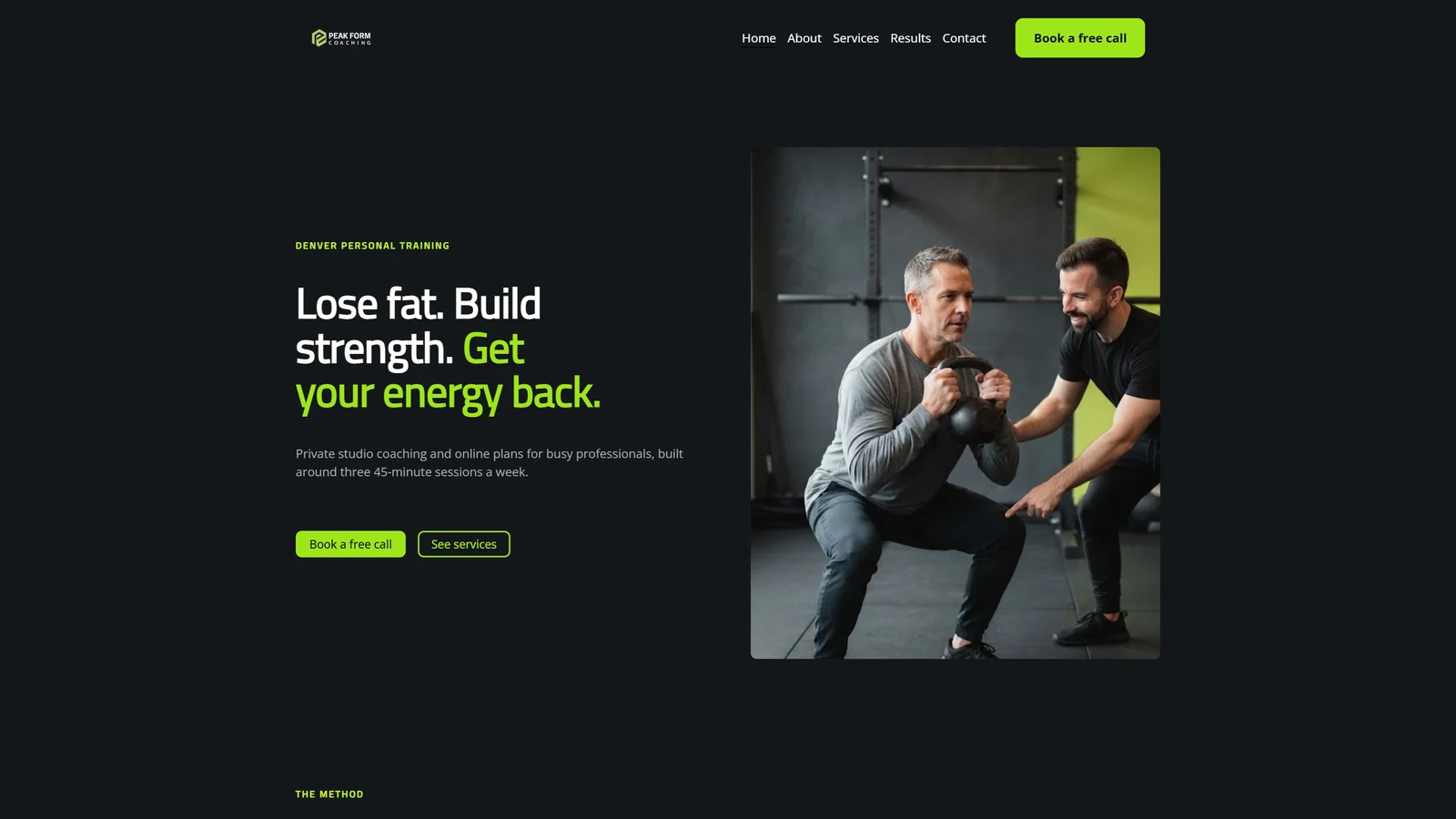
The finished website: a strong hero, two buttons, and a booking button in the header on every page.
What you need before you start
- Web hosting with a domain. We used Hostinger's Web Hosting Unlimited plan (read our full Hostinger review with real cart prices), which includes a free domain for the first year, free SSL, daily backups and the AI website builder. Comparing hosts? See Hostinger vs hosting.com or browse all our hosting reviews. See the current Hostinger price and use the code LEARN2EARN for an extra discount at checkout.
- The real facts about the business: name, city, who it is for, every service with its price, opening hours, phone and email.
- About one evening. The AI draft takes minutes. Finishing it properly takes longer, and that is the part clients pay for.
Our demo business is Peak Form Coaching, a personal trainer in Denver. The business, phone number and stories are demo data, but every step is real.
Step 1: Buy hosting and choose a free domain
Open Hostinger's web hosting plans, pick the plan (we chose Unlimited for unlimited websites, daily backups and the AI tools), choose 48 months for the lowest monthly price, apply the coupon, and create your account. During setup, choose Build on WordPress, claim your free domain, and pick the server location closest to most of your visitors. A US business should use a US server.
Two things beginners miss: the low price is an introductory price that renews higher, and you must click the verification email for your domain within 15 days or the domain can be suspended.
Step 2: Let the AI build the first draft
Hostinger installs WordPress and opens its AI website builder. The single most important thing in this whole tutorial is what you type into this box. Give the AI every real fact. The more facts you give, the less you fix later.
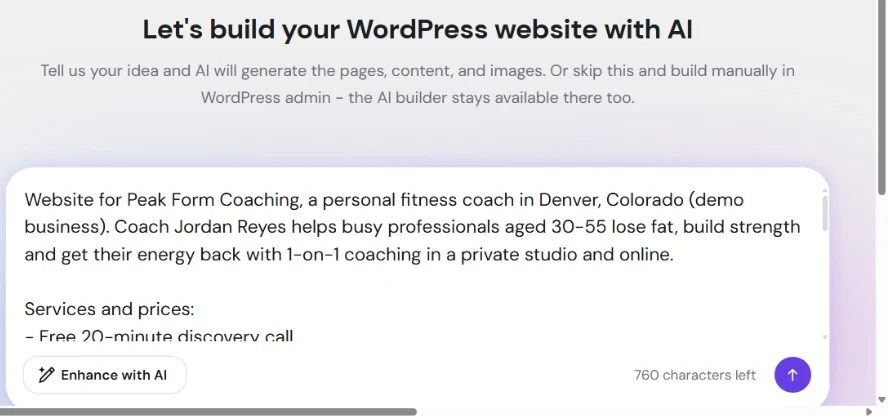
Our prompt: every service and price, the hours, the contact details, the pages and the style.
Here is the prompt we used. Copy it and replace the details with your own business:
Website for Peak Form Coaching, a personal fitness coach in Denver, Colorado (demo business). Coach Jordan Reyes helps busy professionals aged 30-55 lose fat, build strength and get their energy back with 1-on-1 coaching in a private studio and online. Services and prices: Free 20-minute discovery call. 1-on-1 Personal Training: $65 per session (packs of 10 for $590). Online Coaching: $149 per month. 12-Week Transformation Program: $899. Hours: Mon-Fri 6am-8pm, Sat 8am-12pm. Pages: Home, About, Services & Pricing, Results (sample stories, clearly marked), Contact (booking form), plus FAQ on the home page. Style: deep charcoal, white and an electric lime accent, bold modern headings, rounded images, clear "Book a free call" buttons.
The builder then asks a few questions: the editor (we kept Elementor, a free drag-and-drop editor), the language, the brand name, the pages, and your contact details.
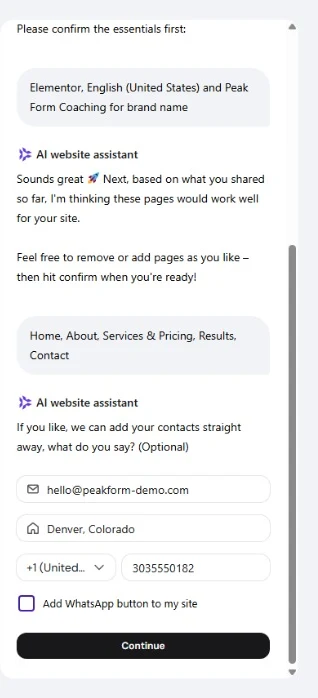
Check this step carefully: it filled in our account email by itself.
Watch out: the builder filled in our personal account email automatically. Whatever you type here goes on the public website, so replace it with the business email. And skip the social links if the business has none. Never leave fake social links on a client's website.
Our first build attempt failed with an error. We clicked Try again and the second attempt finished in about three minutes. If it happens to you, just try again.
✅ Everything in this tutorial is included in one plan
WordPress, the AI website builder, LiteSpeed Cache, free SSL and daily backups, and you can host many client websites on the same plan. Code LEARN2EARN = extra discount.
Step 3: Fix what the AI got wrong
An AI draft is a great start, but it is not finished (the Hostinger AI builder is included in the plan, so you can regenerate sections any time). We checked every page like a client would and found these problems:
| Problem in the AI draft | The fix |
|---|---|
| WooCommerce installed: cart icon, account icon, a strange currency | Plugins → WooCommerce → Deactivate |
| No call to action in the header | Appearance → Editor → Patterns → Header → add a Book a free call button |
| Social links pointing to facebook.com, a newsletter form that did not work | Rebuild the footer: description + button, menu, contact details and hours |
| A privacy link that went nowhere | Publish the Privacy Policy page and add a Terms of Service page |
| Hero headline set as H2 | Change the HTML tag to H1 (one H1 per page) |
| No prices on the home page | Add a pricing section with a button on every card |
| FAQ written as one block of text | Use the Accordion widget and turn on FAQ schema |
| Some photos did not fit the brand | Replace them so the same coach appears in every photo |
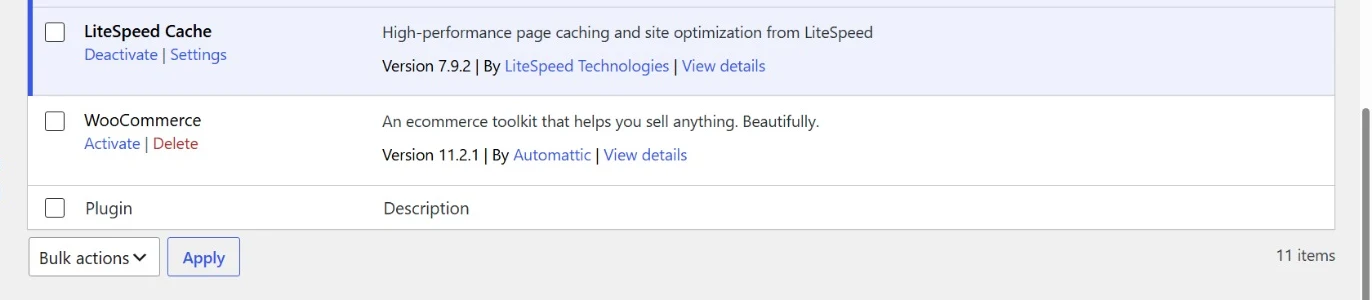
A coach does not sell products online, so the store plugin goes.
The header button
Open Appearance → Editor → Patterns → Header, add a Buttons block after the menu, type Book a free call, link it to the contact page and give it the brand color. Now every page has a clear next step at the top.
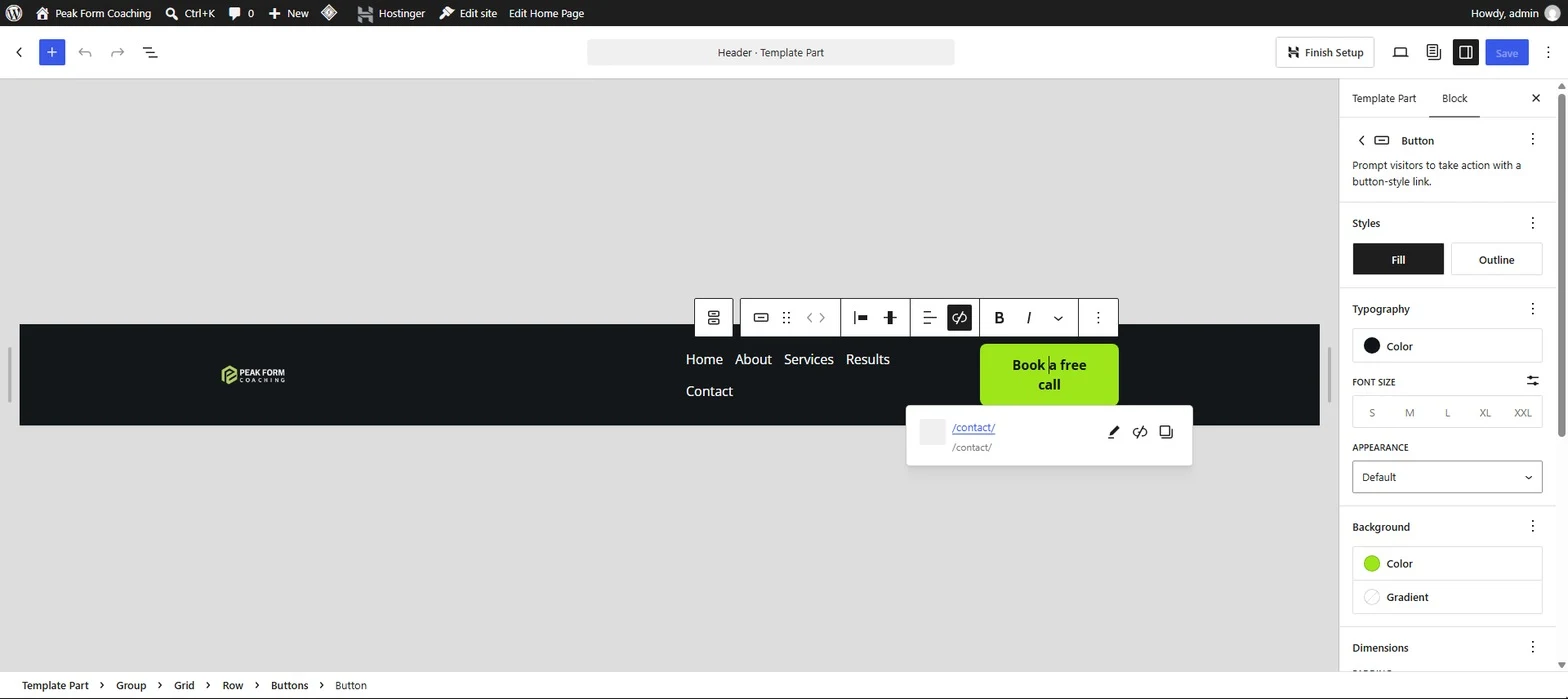
The header button links to /contact/ and uses the lime brand color.
A complete footer
Open the Footer the same way. We removed the fake social links and the broken newsletter form, and built three columns: a short description with the button, the menu, and the contact details with the studio hours. At the bottom: the copyright and links to the Privacy Policy and the Terms of Service.
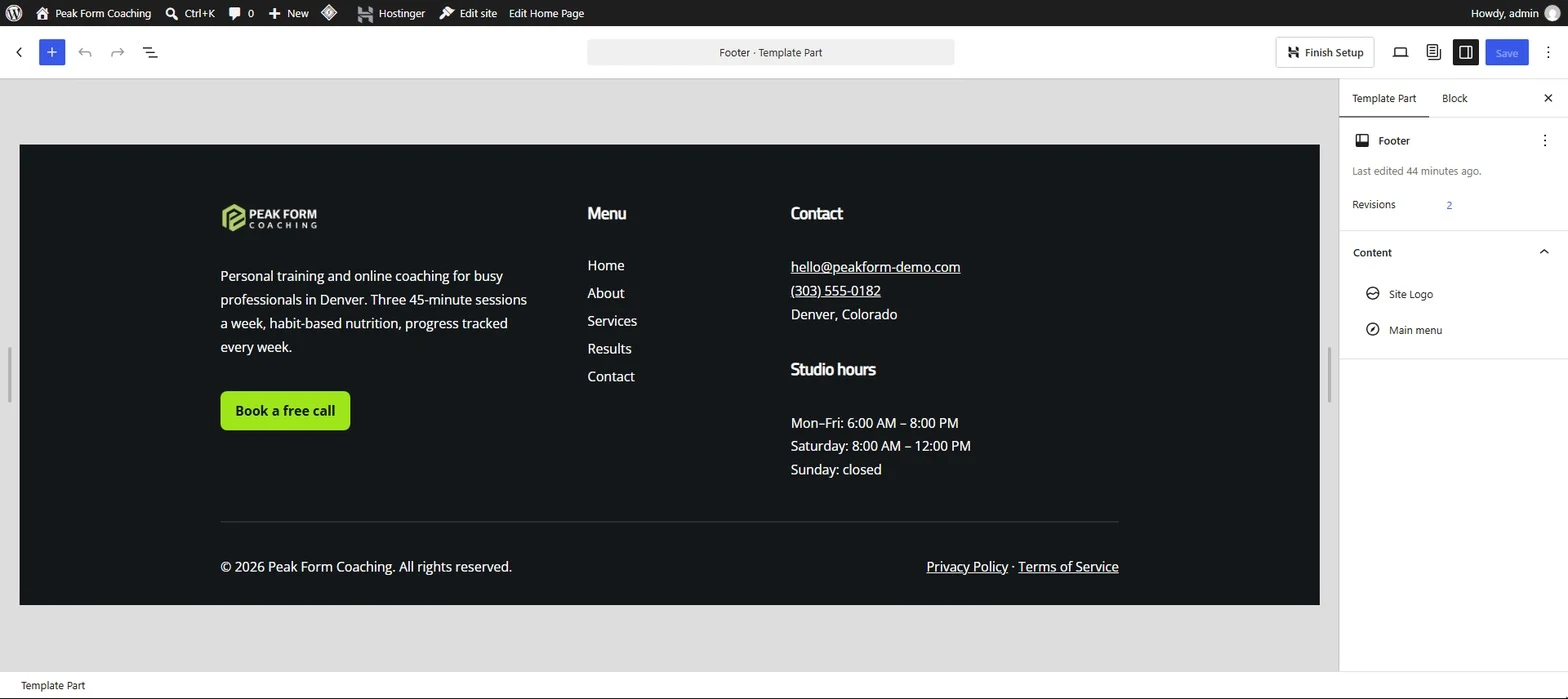
A footer people can actually use: menu, phone, email, hours and legal links.
The home page in Elementor
Open the home page and click Edit with Elementor. Select the hero headline and change the HTML tag from H2 to H1.
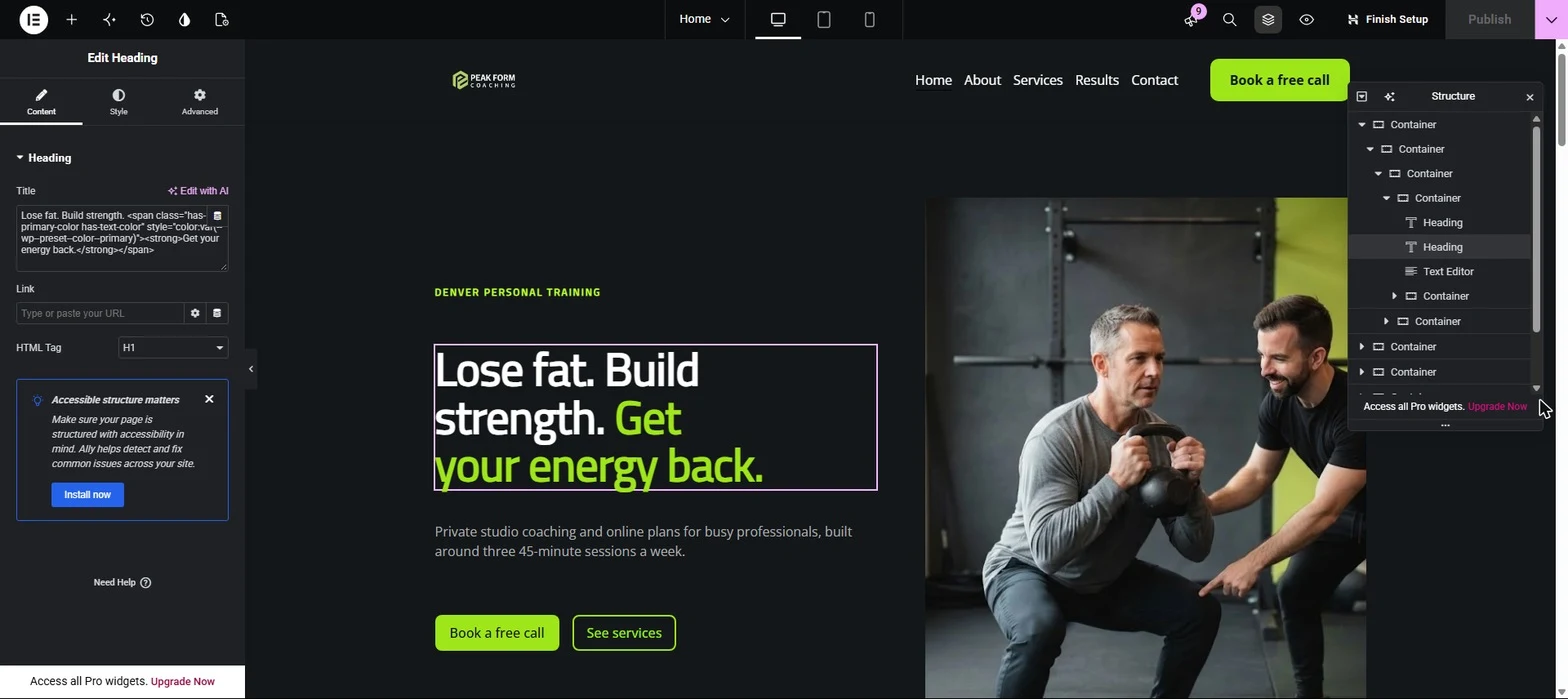
One H1 per page, and it should be the main headline.
Prices are the first thing visitors look for, so we added a pricing section: duplicate an existing section, change the title, and fill each card with the price, the service name, a short description and a button.
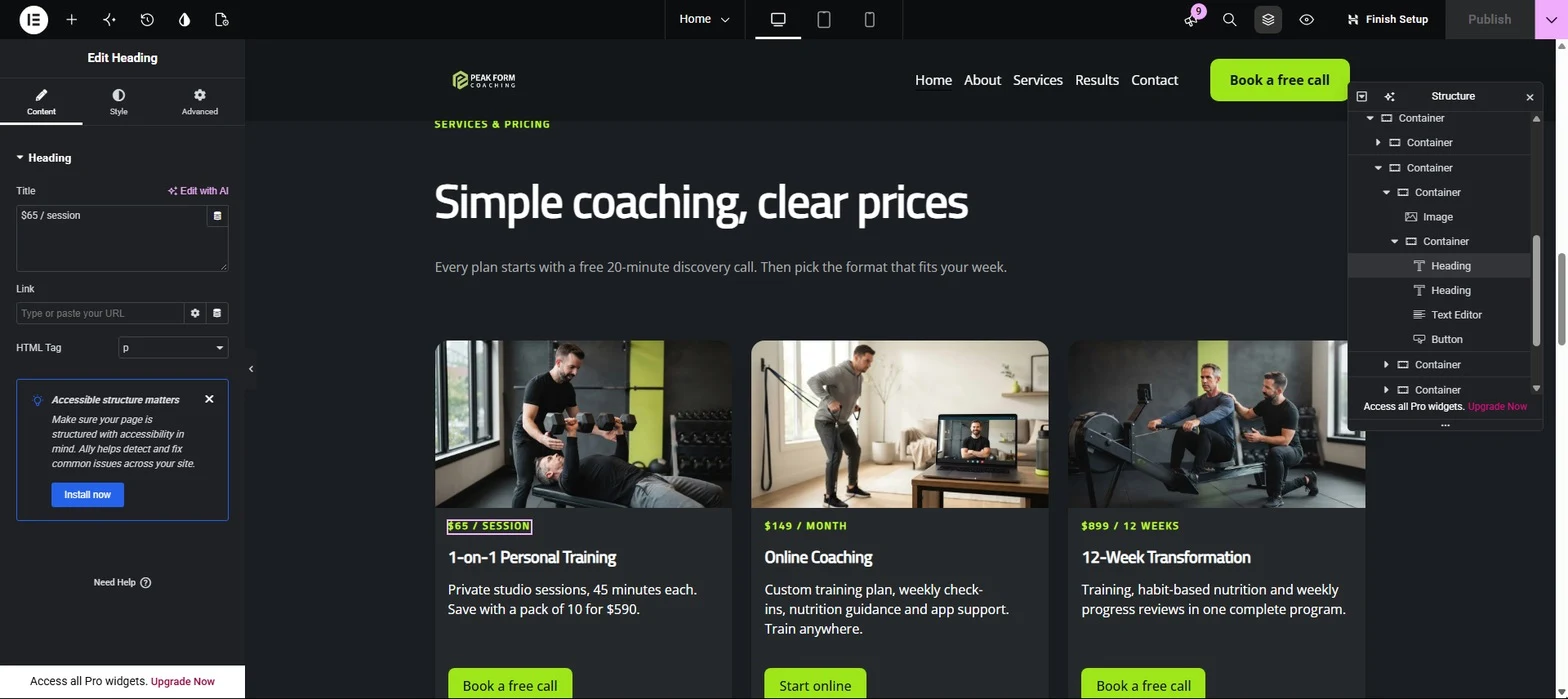
Three clear plans, each with its own button.
For the FAQ, delete the text block, drag in the Accordion widget, add one question per item and turn on FAQ schema so Google understands it (see Google's FAQ guidelines). Five good questions are enough. Then click Publish.
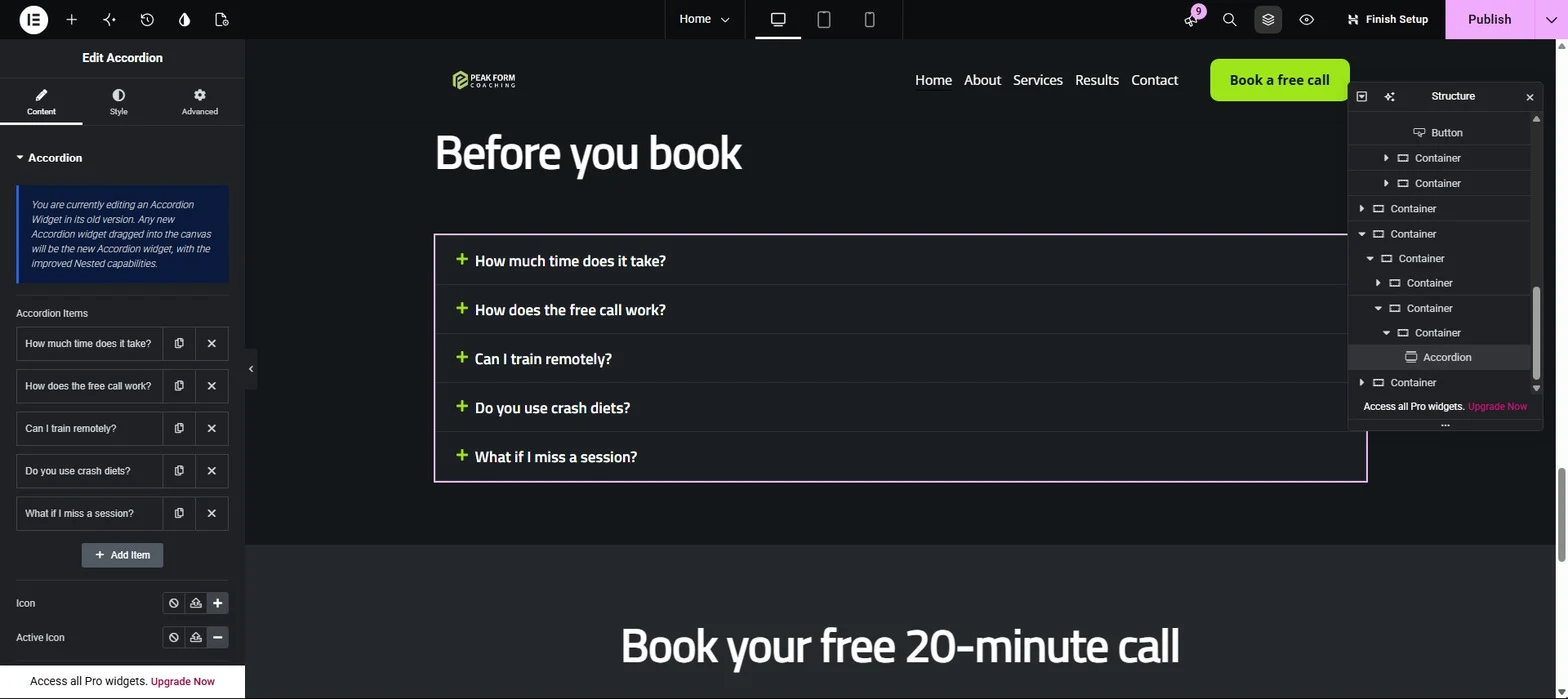
Five questions: time, the free call, online training, diets and missed sessions.
On the other pages, keep the sample stories clearly marked as samples. Never invent fake reviews or results on a real business website.
Step 4: Basic SEO settings
- Settings → General: check the site title and tagline. They appear in Google and in the browser tab.
- Settings → Permalinks: choose Post name (WordPress docs), so links look like
/services/instead of/?p=123. - Settings → Reading: make sure Discourage search engines is off on a real website (what this setting does). We switched it on only because ours is a demo.
- Add the live domain to Google Search Console and submit the sitemap at
/wp-sitemap.xml.
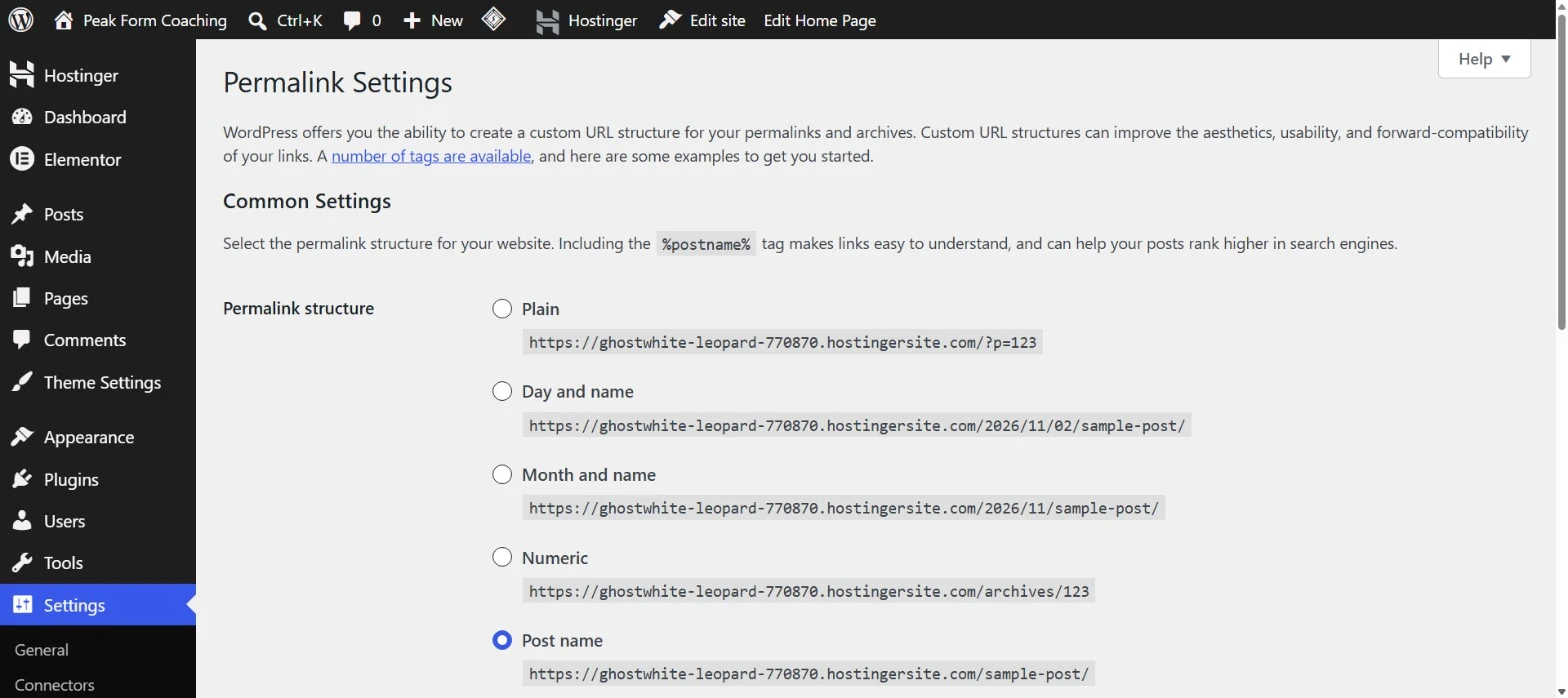
Post name gives clean, readable links.

This one checkbox can hide a whole business from Google. Keep it off on real sites.
Step 5: Speed, security and a mobile check
Hostinger installs LiteSpeed Cache with the public cache already on. After big changes, click Purge All so visitors see the new version. You also get free SSL, and the Unlimited plan includes daily backups you can restore from hPanel.
Finally, open the site on a phone. Every section should stack cleanly, buttons should be easy to tap and nothing should scroll sideways. Then click every link: the menu, every button and every footer link. We tested all of them on this site.
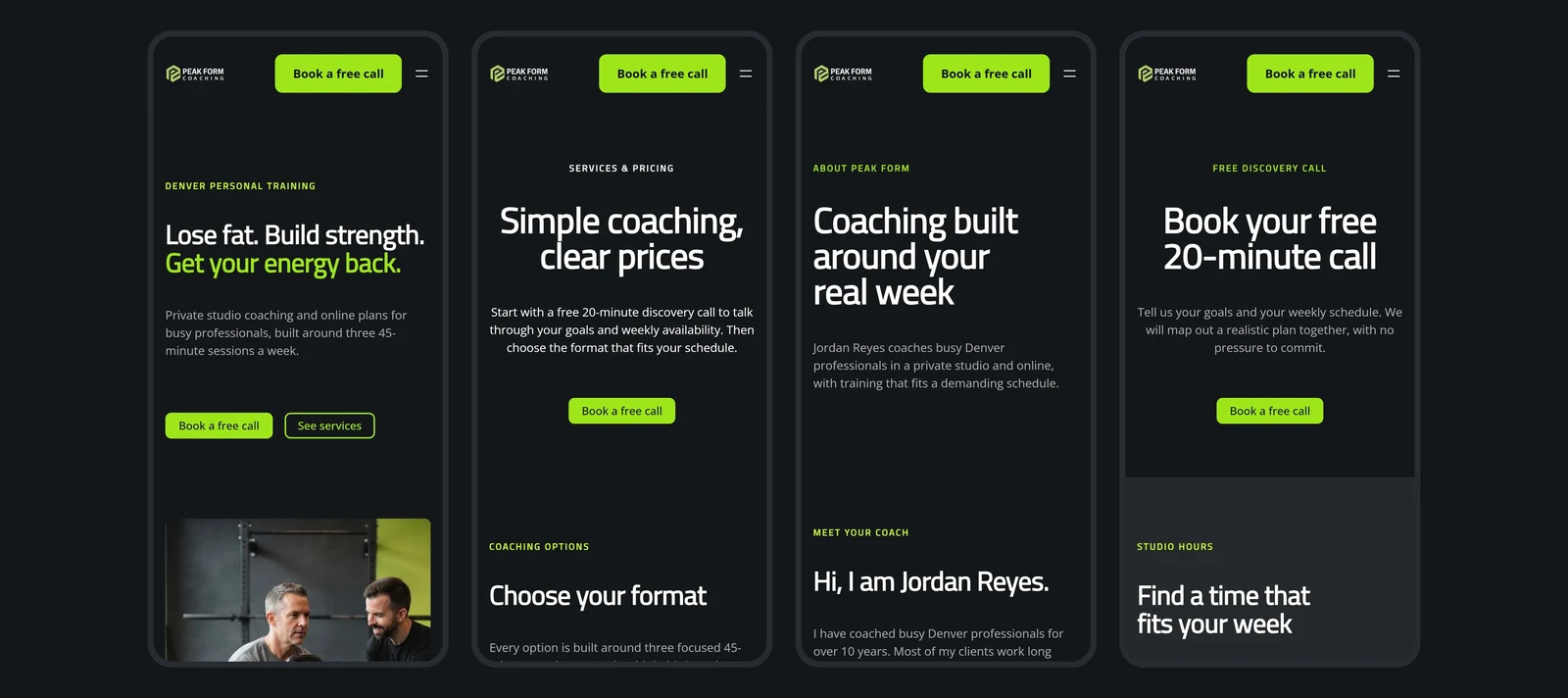
Home, Services, About and Contact on a phone, with the booking button always at the top.
How much does it cost, and can you sell it?
Your cost is the hosting plan (a few dollars a month on a long term, and one plan can host many client websites) plus your time. Local businesses such as trainers, salons and clinics often pay $500 to $1,000 for a website like this, plus a monthly fee for hosting, updates and small changes. These are typical market examples, not a promise of income.
The simple way to find clients: search Google Maps for local businesses with no website or an old one, build a demo in an evening, and send them the link. If you build with ChatGPT, Claude or Gemini instead of WordPress, here is how to publish an AI-generated website without Node.js. When they say yes, put their site on your hosting plan and charge a monthly fee.
Our recommendation
For a first business website, WordPress on shared hosting with an AI builder is the fastest way to a professional result you fully own. The AI saves you hours on the first draft. Your job is to check every page, fix what the AI got wrong and make it trustworthy.
🚀 Ready to build your first website?
Start with the same plan we used, claim your free domain, and follow the steps above. Code LEARN2EARN gives you an extra discount at checkout.
Not sure which host fits you? Compare real 4-year costs with our hosting cost calculator or read our hosting comparisons.